
Introduction
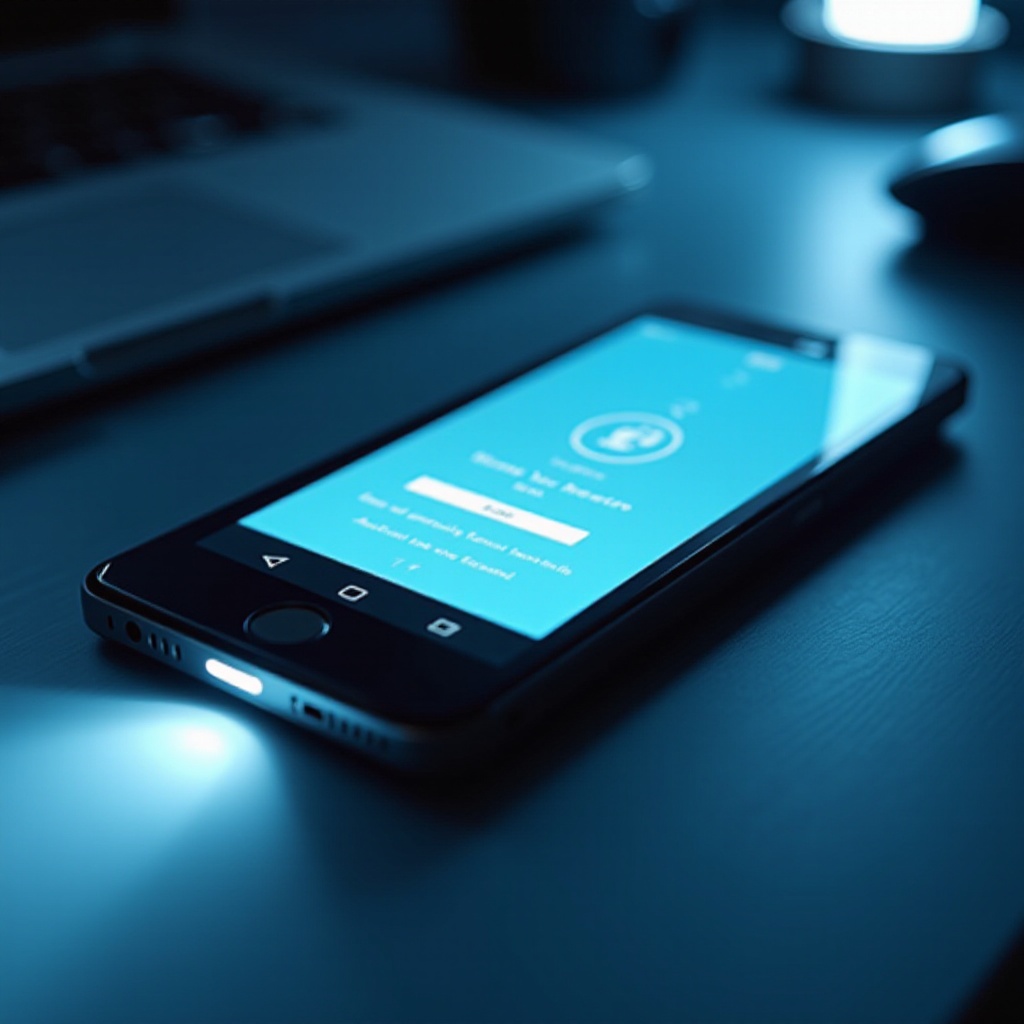
The torch feature on smartphones quickly becomes indispensable, especially when you need a reliable source of light in an instant. From searching for misplaced items under the couch to lighting your path during nighttime excursions, knowing how to efficiently access your phone’s flashlight is invaluable. This guide is designed to help Android and iOS users easily activate their torch, troubleshoot common issues, and get the most out of this simple yet powerful feature.
Understanding the Torch Feature on Smartphones
Smartphones today come equipped with a handy flashlight feature, commonly known as the ‘torch’. This tool converts your camera’s flash component into a steady light source, transforming your phone into a versatile flashlight. The convenience of having a torch at your fingertips cannot be overstated. It provides immediate illumination for various tasks, enhancing the usability of your phone.
Understanding how this feature integrates into your phone’s system is crucial as it serves as a foundation for effective usage. Different platforms may offer varied methods of activation, so familiarity with your device’s specific operations aids in seamless torch access. Next, we delve into specific instructions for Android and iOS devices, ensuring every user can turn their torch on promptly.
Accessing the Torch on Android Phones
For Android users, turning on the torch is quick and easy. Here’s how:
- Quick Settings Menu: Swipe down from the top of your screen to reveal the quick settings panel. Locate the flashlight icon and tap it to toggle the torch on or off.
- Google Assistant: Utilize voice control by saying, ‘Hey Google, turn on the flashlight.’ This hands-free method is particularly useful when your hands are full.
- Third-Party Apps: Some users prefer enhanced features offered by third-party apps. Download these from the Google Play Store to access advanced modes, such as adjustable brightness and strobe lights.
Android devices offer these multiple options to cater to different user preferences. However, iOS devices handle this functionality a bit differently, which we’ll explore next to cover all user bases.
Accessing the Torch on iPhones
For iPhone users, the torch can be accessed and used with ease:
- Control Center: On newer models, swipe down from the upper-right corner, or on older models, swipe up from the screen’s bottom to open the Control Center. Tap the flashlight icon to use the torch.
- Siri: Activate the torch via voice command by saying, ‘Hey Siri, turn on the flashlight.’ This allows for easy activation without needing to engage your phone manually.
- Settings Customization: Navigate to Settings > Control Center and ensure the flashlight icon is included for swift access.
Whether using Android or iOS, these straightforward methods simplify access, allowing users to concentrate on effectively using their device’s capabilities. Even with these straightforward steps, issues can occur; learning how to troubleshoot them is crucial.
Troubleshooting Common Torch Issues
Problems with the torch can arise, but they are usually easy to fix. Here are some common issues and how to resolve them:
- Torch Not Responding: Sometimes a simple restart can resolve unresponsive torch issues. Restart your device to reboot the system.
- App Interference: Check if third-party flashlight apps are causing conflicts. Temporarily remove these apps and see if the torch works normally.
- Settings Check: Ensure your phone’s software is up to date, as older versions may have unresolved bugs causing torch functionality issues.
By following these troubleshooting steps, you can assure a functioning torch, ready for any moment you need it. Now that you’ve solved any technical issues, let’s focus on maximizing your torch’s efficiency and conserving battery life.
Maximizing Torch Efficiency and Usage
Using your phone’s torch efficiently extends its battery life and improves its reliability. Consider these practices:
- Adjust Brightness: Some phones allow you to change the brightness level. Lowering it can save battery life while providing sufficient light for most situations.
- Limit Usage Time: Keep the torch on only for as long as necessary. This preserves your battery and avoids unnecessary wear on the phone’s components.
Incorporating these practices into your routine ensures your phone’s torch is always ready when you need it most. Additionally, the torch can be used creatively beyond basic illumination, offering unique applications in your daily life.
Innovative Uses for Your Phone’s Torch
Your phone’s torch has several practical and non-traditional uses:
- Emergency Situations: Signal for help during emergencies or power outages.
- Creative Photography: Use it as a light source for creative photography, experimenting with shadows and highlights.
- DIY Projects: Handy for illuminating small areas during detailed tasks and repairs.
Applying these creative applications further enhances the torch’s value, demonstrating the myriad of uses this simple feature provides. From everyday tasks to urgent scenarios, mastering how to access and utilize the torch feature on your smartphone brings both practicality and confidence.
Conclusion
In summary, the smartphone torch is a versatile tool integral to navigating both everyday and unexpected tasks. By understanding how to easily turn it on, troubleshoot issues, and enhance its usage, you are well-equipped to handle any situation where light is required instantly. Embrace the convenience and reliability your phone’s torch offers, making it an indispensable feature in your device’s repertoire.
Frequently Asked Questions
How do I enable the torch feature on my phone if it’s not in the quick settings?
Ensure it’s added through your settings menu. For Android, edit the quick settings panel. On iPhone, customize the Control Center.
Can using the torch feature damage my phone battery?
While occasional use is fine, prolonged use could cause faster battery depletion. Use strategically to avoid potential impacts.
Are there apps to improve the functionality of my phone’s torch?
Yes, various apps like TeslaLED and Flashlight offer additional features such as brightness controls and strobe settings.