
Introduction
Text messaging is a key communication method on our iPhones. Whether you’re using iMessage or SMS, knowing how to effectively manage message delivery issues is crucial. Resending messages is a common task in case of failures. This guide will show you how to resend text messages on an iPhone, covering both iMessage and SMS, and offer practical tips for optimizing your messaging experience.
Understanding iPhone Messaging Options
Before we dive into the resending process, it’s necessary to understand the two messaging options available on iPhones: iMessage and SMS. Each functions differently.
The Difference Between iMessage and SMS
iMessage is Apple’s data-driven messaging service, marked by blue bubbles. It allows text, media, contact sharing, and more. SMS, identified by green bubbles, is the standard text messaging format using carrier services and limited to basic text.
Identifying Message Delivery Failures
Recognizing delivery failures sets you up for the next step: resolution. Common signs of failure include messages stuck in ‘Sending’ or displaying ‘Not Delivered.’ Understanding these indicators is crucial.
Understanding iPhone messaging options sets the context for addressing message delivery failures effectively.
Step-by-Step Guide to Resending Text Messages
Knowing how to resend text messages on your iPhone can save time and effort. Follow these steps to resend failed messages, either iMessage or SMS.
Resending Failed iMessages
- Identify the Failed Message: Open the Messages app and find the conversation with the failed message. Look for red ‘Not Delivered’ text.
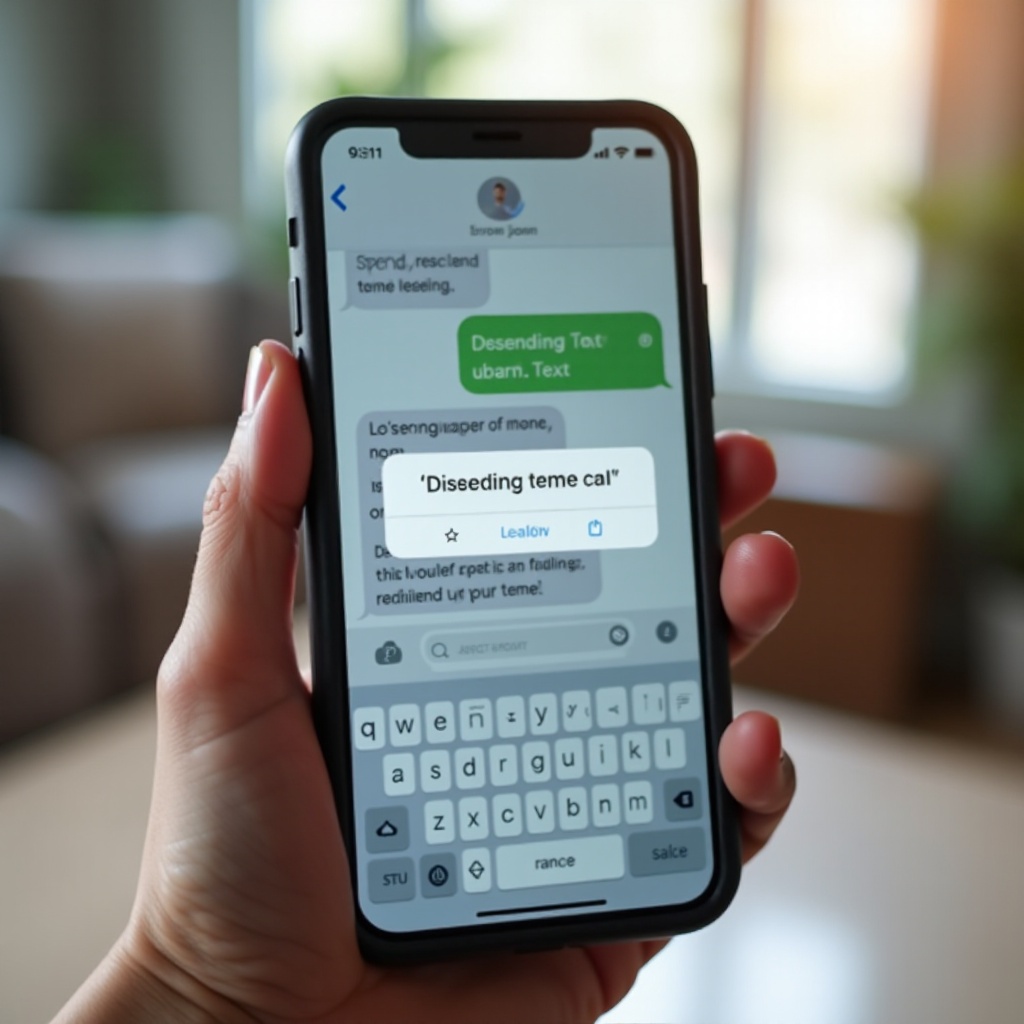
- Tap and Hold the Message: Press the failed message until a menu appears.
- Select ‘Try Again’: Tap ‘Try Again’ to resend using iMessage.
Resending Failed SMS Messages
- Locate the Failed SMS: Find the conversation with the failed message in the Messages app.
- Tap and Hold the Message: Press the failed message with a red exclamation mark.
- Choose ‘Send as Text Message’: Select ‘Send as Text Message,’ and your iPhone will resend using SMS.
Using Third-Party Apps for Message Management
For more control over messaging, consider third-party apps. Apps like ‘ReSnd’ or ‘AutoMessage’ offer features like scheduled resending and message organization, ideal for frequent delivery issues.
Resending messages is straightforward when you understand the process and take advantage of helpful tips.
Troubleshooting Common Resending Issues
Technical obstacles might impede the resending process. Knowing common issues allows for quicker resolution.
Network Connectivity Problems
Poor network connectivity often causes delivery failures. Ensure a stable internet connection for iMessage or adequate signal for SMS. Restart your phone or toggle Airplane Mode to resolve minor issues.
Updating iOS for Better Performance
Keeping iOS updated ensures optimal messaging functionality. Updates often contain bug fixes that improve message handling. Check for updates via Settings > General > Software Update.
Resetting Network Settings
If issues persist, reset network settings: Settings > General > Reset > Reset Network Settings. Be aware this will erase Wi-Fi passwords.
Addressing these issues ensures messages are sent and received smoothly, enhancing overall communication efficiency.
Tips for Optimizing Your Messaging Experience
Streamlining your messaging not only aids in resending failures but also enhances daily communication.
Managing Message Notifications
Customize notifications to prioritize important messages. Use Settings to manage alerts for specific apps or contacts, improving response times.
Utilizing Quick Responses and Templates
Quick Responses save time with repetitive replies. Create these time-savers under Settings > Messages, facilitating seamless communication.
Conclusion
Resending text messages on your iPhone doesn’t need to be daunting. By understanding the differences between iMessage and SMS, identifying delivery issues, following practical resending methods, and utilizing troubleshooting techniques, you’ll be well-equipped to handle messaging efficiently. Enhance your iPhone experience by managing settings and making the most of built-in features.
Frequently Asked Questions
Why do some messages fail to send on my iPhone?
Messages fail due to network issues, incorrect settings, or server problems with iMessage. Ensuring stable connectivity and correct settings usually resolves these issues.
Can I automatically resend failed messages?
iPhones lack an automatic resending feature. However, third-party apps like ‘ReSnd’ provide functionalities that can help manage message resending.
How do I check if my iMessage is down?
Visit Apple’s System Status page online to check for iMessage or other Apple service issues. When down, messages typically send as SMS instead.