
Introduction
The Echo Show is a favorite among smart home enthusiasts, known for its versatile features and user-friendly interface. A particular source of curiosity among users is the yellow bar that sometimes appears on its screen. This guide will unlock the secrets of the yellow bar, explaining its purpose and how you can address it. By grasping this aspect of the Echo Show, you can enhance your overall experience and make the most out of your device.
What is the Echo Show Yellow Bar?
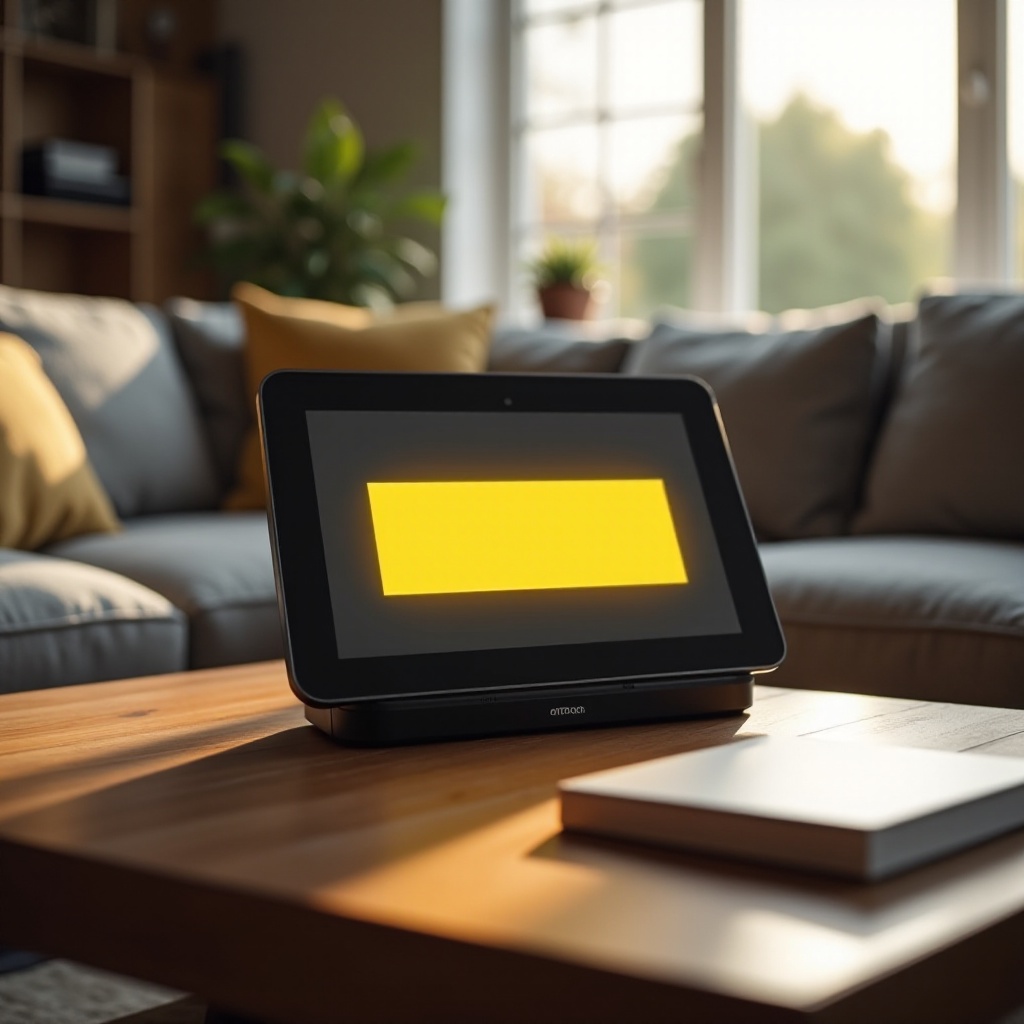
The yellow bar is an important part of your Echo Show’s notification system. When this bar appears, it signals that there are pending notifications or messages that require your attention. This visual cue ensures you never miss an important alert, whether it’s a message, reminder, or system update from Alexa. Understanding this feature is key to maintaining effective communication with your smart device.

Common Reasons for the Yellow Bar
The yellow bar can appear for several reasons, linking back to your everyday use and interaction with the device:
- Notifications and Messages: It’s most commonly related to new or unread messages and reminders.
- System Updates and Alerts: Important software updates or system alerts can also trigger the yellow bar, ensuring that you are informed about essential maintenance or improvements.
- Interaction Reminders: Sometimes, the yellow bar serves as a nudge from Alexa for scheduled interactions or tasks you may have set up.
Being aware of these common triggers is the first step toward managing the yellow bar effectively and ensuring your device functions seamlessly.
Troubleshooting the Yellow Bar Issue
Once you’ve identified the yellow bar, addressing it is straightforward:
- Check Notifications: Swipe down from the top of the Echo Show screen to access your notifications. This simple gesture will reveal any alerts or messages that need your attention.
- Listen to Alexa: You can say, ‘Alexa, what are my notifications?’ and have the assistant read them aloud, providing an easy way to keep on top of things.
- Acknowledge and Clear: Once you’ve reviewed your notifications, acknowledge them to clear the prompt.
- Update Regularly: If the yellow bar relates to software updates, ensure you access the settings menu to install pending updates to keep your Echo Show running smoothly.
By following these steps, you can quickly clear the yellow bar and maintain uninterrupted functionality.
Enhancing Your Echo Show Experience
Beyond just managing notifications, consider these strategies to elevate your Echo Show experience:
- Customize Settings: Explore the device’s wide array of settings to tailor it according to your preferences, from display options to sound settings.
- Connect Smart Devices: Integrate the Echo Show with other smart home devices to create a seamless, interconnected environment.
- Utilize Alexa Skills: Discover various Alexa skills available for your device to expand its capabilities and make everyday tasks easier.
By optimizing these features, you deepen your relationship with the Echo Show, ensuring a more interactive and responsive experience.
Exploring Other Visual Cues on Echo Show
Apart from the yellow bar, the Echo Show utilizes other colors to indicate different statuses:
- Red Bar: May indicate that the microphone and camera are turned off or a potential connectivity issue.
- Green Bar: Often shows when there is an ongoing call or Drop-In connection.
Understanding these indicators will help you quickly address issues that may arise, keeping your Echo Show running efficiently.
Conclusion
The Echo Show’s yellow bar is more than just a visual marker; it is a gateway to maintaining smooth communication between you and your smart device. By understanding its purposes and mastering the troubleshooting steps, you pave the way for a hassle-free experience. Empower yourself by exploring all the functionalities your Echo Show offers, creating a more intelligent and connected home.
Frequently Asked Questions
What does the yellow bar mean on my Echo Show?
The yellow bar indicates there are unread notifications or messages requiring your attention.
How can I clear the yellow bar notification?
To clear it, swipe down to access notifications, ask Alexa to read them, and acknowledge them to remove the bar.
Are there other color indicators on Echo Show?
Yes, other indicators include a red bar for connectivity or privacy issues and a green bar for ongoing calls.