
Introduction
JLab earbuds are gaining popularity due to their excellent wireless connectivity and sound quality. Many users are eager to pair them with their iPads for an enhanced audio experience. This guide is designed to walk you through the seamless process of connecting your JLab earbuds to an iPad, ensuring high-quality sound and performance.
Understanding JLab Earbuds
JLab offers a variety of earbud models catering to diverse needs. Whether you’re considering the affordable JLab GO Air or the sophisticated Epic Air, these earbuds provide a rich feature set. Key features include water resistance, long-lasting battery life, and customizable audio settings, all of which make them an ideal choice for iPad users.
To ensure a smooth transition into pairing, understanding your earbuds’ basic features and controls sets the foundation. Knowing how to activate pairing mode will help eliminate potential hurdles in the connecting process.
Preparing Your Devices for Connection
Successful pairing begins with ensuring both your JLab earbuds and iPad are ready for the connection. To start, verify that your iPad runs the latest iOS version. Go to ‘Settings,’ select ‘General,’ and tap ‘Software Update’ to check for updates.
Next, ensure your earbuds are fully charged. This step is crucial as low battery levels can disrupt the pairing or connection process. Additionally, keep both devices within a 10-meter range to facilitate a stable connection.
Step-by-Step Guide to Pair JLab Earbuds with iPad
Pairing your JLab earbuds with your iPad is straightforward if you follow these steps:
- Activating Bluetooth on iPad:
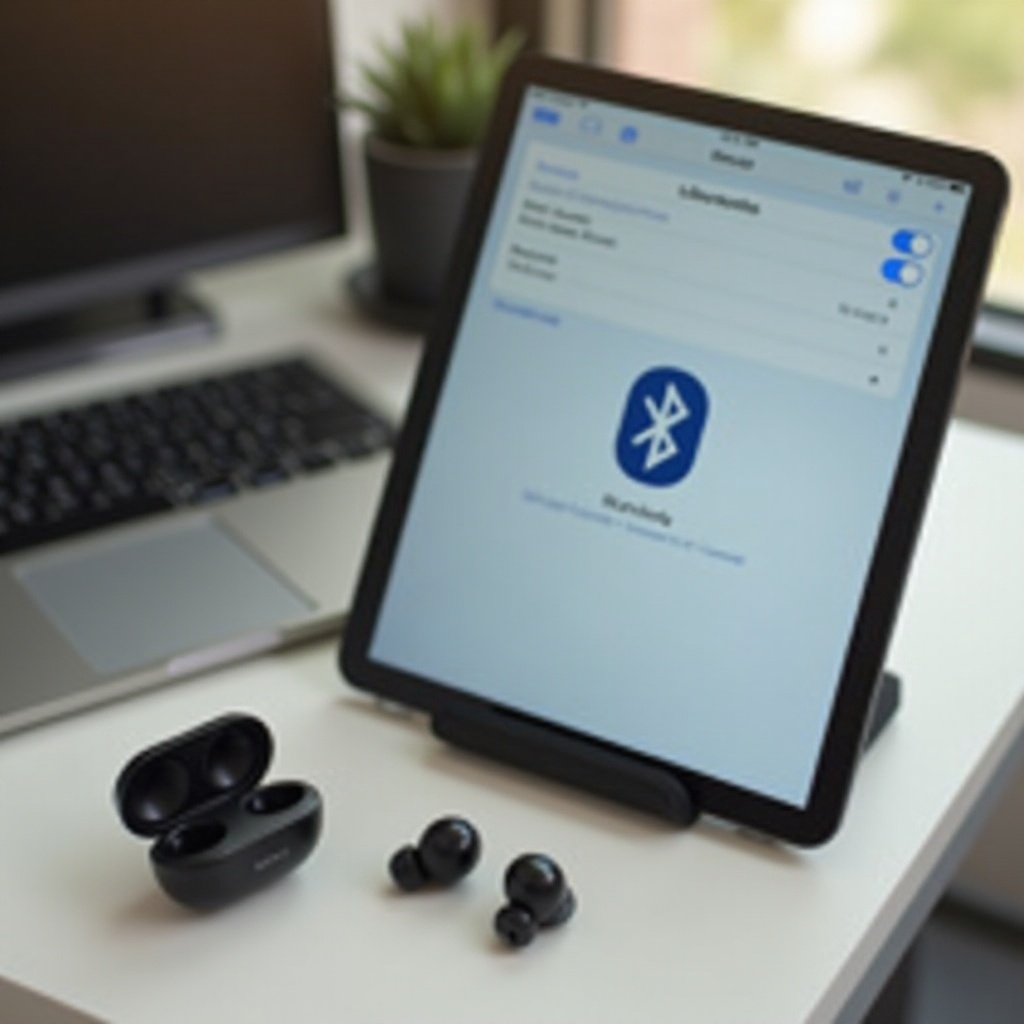
- Open the ‘Settings’ app on your iPad and select ‘Bluetooth.
-
Flip the Bluetooth switch to the ‘on’ position. Your iPad will start searching for nearby devices.
-
Powering On and Enabling Pairing Mode on JLab Earbuds:
-
Press and hold the power button on your earbuds or remove them from the case, ensuring the LED light indicates pairing mode.
-
Selecting JLab Earbuds in iPad Bluetooth Settings:
- When your earbuds appear on the list of available devices, tap ‘JLab earbuds’ to connect.
- You will hear a confirmation tone or see a light, indicating a successful connection.
With the devices now paired, it’s important to ensure an optimal audio experience, which requires checking on common connection pitfalls.
Troubleshooting Common Connection Issues
Even with careful setup, users might face occasional connectivity issues. Here are common problems and their solutions:
- Earbuds Not Appearing in Bluetooth List: Double-check if your earbuds are in pairing mode. Restart your iPad if necessary, then try again.
- Intermittent Connectivity Problems:
- Minimize interference by ensuring other Bluetooth devices in the area are turned off.
- Move your devices closer to avoid disruptions.
- Solutions for Sound Quality Issues:
- Re-pair the devices or adjust volume and audio settings on your iPad to enhance performance.
After resolving these issues, focus on maximizing your audio experience.
Enhancing Audio Experience on iPad
To further enhance your listening experience, tweak the iPad’s audio settings:
- Go to ‘Settings,’ then ‘Music’ or ‘Sound.
- Adjust the equalizer settings or sound presets according to the content you are enjoying, be it music, podcasts, or films.
These settings allow for a tailored auditory experience, matching your personal preferences.
Maintaining and Caring for JLab Earbuds
Proper maintenance is key to prolonging the life and performance of your JLab earbuds. Follow these suggestions:
- Clean your earbuds regularly with a soft, dry cloth to prevent earwax buildup.
- Store them in their charging case when not in use to protect them from physical damage and debris.
- Keep them away from extreme temperatures or excessive moisture, which can harm their internal components.
Taking these steps will ensure your earbuds remain in top condition, ready to deliver optimal performance at all times.
Conclusion
Connecting JLab earbuds with an iPad enhances any audio experience, providing a convenient and high-quality sound platform. By following the detailed steps and troubleshooting tips provided, you can ensure that your devices remain seamlessly connected, allowing you to enjoy the wide range of features available with JLab earbuds.
Frequently Asked Questions
Why won’t my JLab earbuds connect to my iPad?
Ensure Bluetooth is activated on both devices and that your earbuds are in pairing mode. If issues persist, restart both your earbuds and iPad.
How do I reset my JLab earbuds?
Power off your earbuds and hold the pairing button for about 10 seconds until the LED indicator flashes, signaling a reset.
Can I connect my JLab earbuds to multiple devices?
While simultaneous pairing isn’t supported, you can switch between devices by disconnecting from one and pairing with another through the Bluetooth settings.