
Introduction
Logging out of Amazon Prime Video on your television is a crucial action to maintain privacy, especially if you share the device with roommates or family. We’ll guide you through a simple, effective logout process tailored for various TV models including Samsung, LG, Sony, and other brands. Additionally, explore solutions for common issues and essential tips to secure your Amazon account while enhancing your overall viewing experience.
Understanding Your Smart TV and Streaming Devices
Before jumping into the steps to log out, it’s important to recognize the type of smart TV or streaming device you are using. Each device may have different navigation paths and settings to access the Amazon Prime Video app.
-
Popular Smart TV Brands
Understanding your TV brand, whether it’s Samsung, LG, or Sony, is integral as each has unique interfaces. Knowing this will make it easier to follow the logout steps. -
Navigating Streaming Apps
Many smart TVs come with pre-installed apps like Amazon Prime Video. Once you’re familiar with how to access these apps, logging out becomes more straightforward.
Now that you have a better understanding of different devices, let’s dive into detailed steps on how to logout of Amazon Prime Video on your specific TV model.
Step-by-Step Guide to Logging Out of Amazon on Your TV
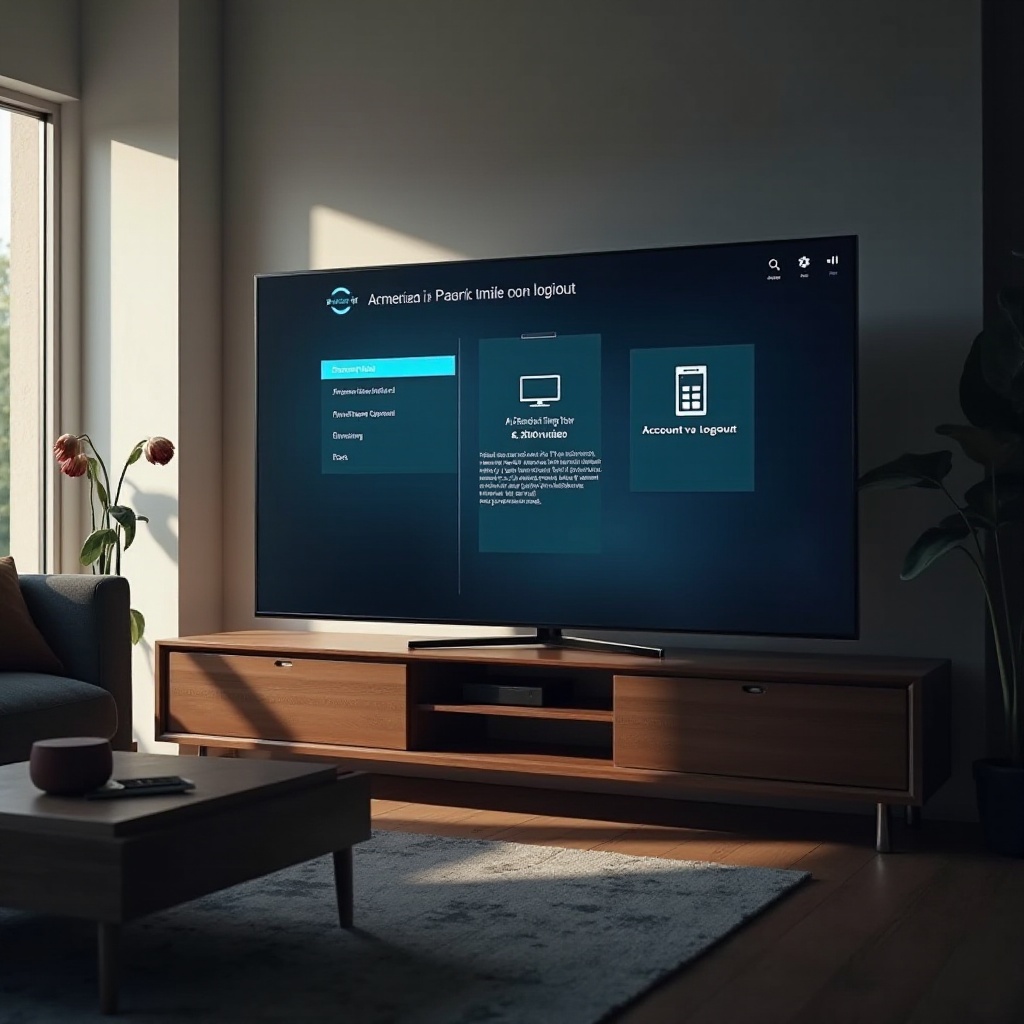
Logging out of Amazon Prime Video can vary depending on the TV brand you own. Here’s a simple guide for each popular model:
- Logging Out on Samsung Smart TVs
- Launch the Amazon Prime Video app on your Samsung TV.
- Go to the ‘Settings’ menu within the app.
-
Choose ‘Deregister Device’ to successfully log out.
-
Logging Out on LG Smart TVs
- Open the Amazon Prime Video app and access ‘Settings.
- Navigate to ‘My Account.
-
Click on ‘Deregister Device’ to sign out from your account.
-
Logging Out on Sony and Other Smart TVs
- Run the Amazon Prime Video app.
- Head to ‘Settings’ within the app.
- Select ‘Deregister Device’ and confirm to log out.
Following these steps will ensure that your device is securely logged out. However, if you face any difficulties, the next section on troubleshooting may help.
Troubleshooting Common Issues
Even after following the logout procedure, you may encounter some obstacles. Let’s explore how to resolve common problems that might arise:
-
Can’t Find Amazon Prime Video App
Ensure your TV has internet access and check the app store to reinstall or update the Amazon Prime Video app if necessary. -
Error Messages During Logout
If error messages occur, reboot your television and try the logout process again. If problems persist, uninstall and reinstall the app to refresh the setup.
Now that you’re equipped to manage potential issues, let’s focus on enhancing the security of your Amazon account.
Enhancing Account Security on Your TV
Securing your account goes beyond merely logging out after every session. By maintaining strong security measures, you can keep your data safe.
-
Keeping Your Account Secure
Regularly change your password to something strong and unique. Use a combination of letters, numbers, and symbols to bolster security. -
Regularly Updating Passwords
Aim to update your passwords every three to six months. Consider using a password manager to handle the complexity without memorization.
The next section will discuss how you can customize and manage your Amazon Prime Video settings on different TVs for an optimal experience.
Tips for Managing Amazon Prime Video on Different TVs
Enhancing your streaming experience on smart TVs is simpler with some practical management tips:
-
Customizing Your Viewing Experience
Delve into the app’s settings to adjust features such as subtitles, audio languages, and picture quality to suit your preferences. -
Best Practices for Shared Devices
Always log out after watching if multiple people use the TV. This action prevents others from accessing your account without permission.
Let’s conclude by recapping the importance of these steps in safeguarding your digital experience.
Conclusion
Logging out from Amazon Prime Video on your TV is vital for privacy and security, especially when using shared devices. With the guidance provided, including troubleshooting tips and security best practices, you can ensure your Amazon account stays protected. Regular application of these methods will facilitate a safer, more enjoyable streaming experience for you and your family.
Frequently Asked Questions
How do I logout of Amazon on a Roku device?
Open the Amazon Prime Video app, navigate to ‘Settings’, and select ‘Deregister Device’.
Why can’t I find the logout button on my TV?
Ensure you have the latest version of the Amazon Prime Video app, as older versions may not reflect recent changes.
How can I ensure my account is secure after logging out?
Regularly update your password and monitor your account activity for any unusual access.