
Introduction
In today’s digital age, it’s commonplace for our devices to occasionally falter. The iPhone SE, while generally reliable, can encounter issues like lagging or frozen apps. When your device doesn’t perform as expected, a hard reset can be the solution. This process, which sounds intimidating, is essentially a system reboot and doesn’t affect your data. Our detailed guide will walk you through the hard reset process for iPhone SE, reasons to consider it, model-specific instructions, and post-reset care. Whether you’re tech-savvy or a beginner, this resource is designed to equip you with the knowledge needed for effective device management.
Understanding Hard Resets
When facing sporadic device performance issues, a hard reset becomes a crucial tool. While a factory reset wipes all data, a hard reset merely reboots the system, allowing you to tackle minor glitches and unresponsive screens. It’s akin to rebooting your computer when software misbehaves. Understanding this difference highlights the scenarios where a hard reset is appropriate, enabling you to tackle issues without unnecessary data loss. This distinction is essential in making informed troubleshooting choices and retaining optimal smartphone performance.
Why You Might Need to Hard Reset Your iPhone SE
Several scenarios may warrant a hard reset for your iPhone SE. These include unexpected freezes, slow performance, or unresponsive apps. Post-software update bugs can also disrupt your device’s function. A hard reset gives the system a fresh start, potentially resolving these issues without more extensive measures. By understanding these common triggers, you can quickly decide when a hard reset is the right choice, saving time and reducing frustration associated with more disruptive solutions.
Preparing Your iPhone SE for a Hard Reset
Preparation is key to a successful hard reset. First, consider whether the reset is necessary by attempting simpler solutions like closing apps or restarting the device normally. If these don’t resolve the issue, ensure your device is charged to prevent interruptions. Backing up critical data is another critical preparatory measure—even though the reset shouldn’t delete information, precautions are worthwhile. By taking these steps, you minimize risks and ensure the hard reset process proceeds smoothly.
Step-by-Step Guide to Hard Resetting iPhone SE
Here are the specific instructions for hard resetting the iPhone SE, tailored for different generations.
Instructions for iPhone SE (1st Generation)
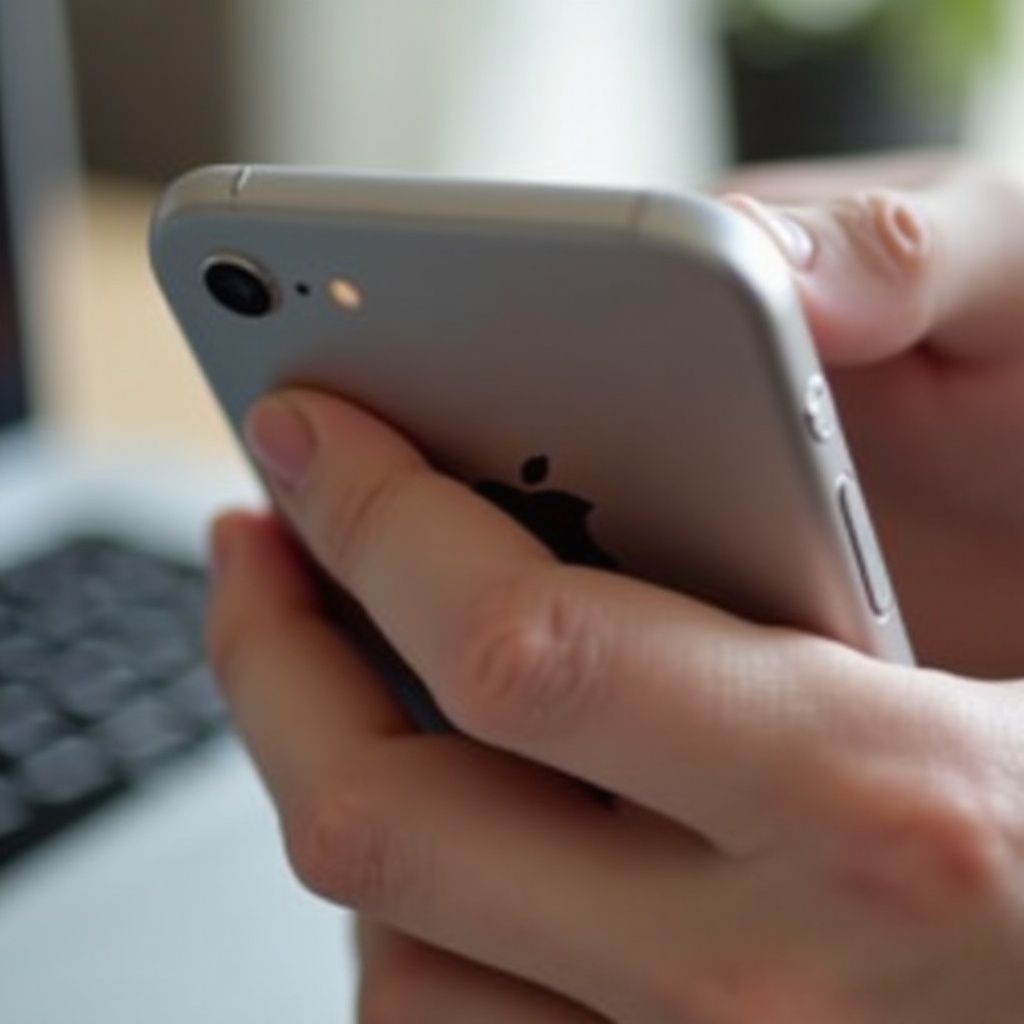
- Locate Buttons: Identify the ‘Home’ button and the ‘Power’ button on the top edge.
- Press and Hold: Simultaneously press and hold both buttons.
- Wait for Apple Logo: Keep holding them until the Apple logo appears, then release.
- Complete Reset: After the reboot, you’ll return to the home screen.
Instructions for iPhone SE (2nd Generation and later)
- Identify Buttons: Find the ‘Volume Up’ and ‘Power’ buttons.
- Quick Button Presses: Quickly press the ‘Volume Up,’ then ‘Volume Down.
- Hold Power Button: Press and hold the ‘Power’ button until the Apple logo appears.
- Reboot: Release to let the device restart.
These generation-specific instructions ensure accuracy in the hard reset process, providing reliable guidance through each step.
Troubleshooting Common Issues Post-Reset
Occasionally, problems may remain even after a hard reset. If your device continues to lag, investigate further with additional troubleshooting. Update apps, as developers frequently issue patches for known bugs. Clear your app cache to free up space. Persistent problems might necessitate a professional evaluation to rule out hardware-related causes. Staying current with iOS updates can also mitigate future issues. These strategies ensure your iPhone SE functions optimally after a reset.
Restoring Your Data and Settings
After resetting, checking your data and settings is crucial. Confirm that apps function as expected; adjust any altered settings like ringtones or Wi-Fi. Missing data can be retrieved via iCloud or iTunes. Regularly back up your device to avoid data loss, ensuring you maintain a seamless experience post-reset. This proactive approach fortifies your device against unexpected setbacks, offering peace of mind and continuity in use.
Protecting Your iPhone SE from Frequent Resets
Frequent hard resets might point to deeper issues. To prevent this, adopt healthy device habits—regularly update your iOS and manage storage effectively. Limit background apps and routinely clear cache to preserve smooth operation. Such practices not only enhance performance but also minimize the need for continual resets, ensuring reliability and longevity in your device.
Conclusion
Hard resetting your iPhone SE is a go-to solution for resolving minor device issues. While not a cure-all, it maintains performance without impacting personal data. Always back up regularly, prepare adequately, and heed specific model instructions for the best outcome. Informed maintenance and conscientious usage can forestall frequent resets, preserving the seamless operation of your iPhone SE.
Frequently Asked Questions
Does hard resetting my iPhone SE erase all my data?
No, a hard reset does not erase your data. It simply restarts the device. Make backups regularly as a precaution.
How often should I perform a hard reset on my iPhone SE?
There is no set frequency. Use it only when the device is unresponsive or showing persistent glitches.
What should I do if my iPhone SE still has issues after a hard reset?
Try updating apps and iOS. If issues persist, consult a professional to check for hardware problems or other underlying issues.