
Introduction
Turning off your Samsung Galaxy phone is an essential skill for troubleshooting, saving battery, or simply taking a break from digital life. Whether you’re dealing with a frozen screen or just need to power down, knowing the right procedure is crucial. This guide presents easy and efficient ways to turn off your Samsung Galaxy phone, ensuring smooth operation and prolonged device life.
Understanding Your Samsung Galaxy Power Options
Samsung Galaxy phones offer multiple methods to power off, providing flexibility in various situations. This versatility ensures that you can adapt to different scenarios, whether you’re facing technical issues or simply prefer using voice commands. By knowing these options, you can effectively manage your device’s power needs and improve your overall user experience.
Method 1: Using the Hardware Buttons
The most straightforward way to turn off your Samsung Galaxy phone is through its hardware buttons, though the specifics may vary across different models.
Identifying the Power Button on Various Models
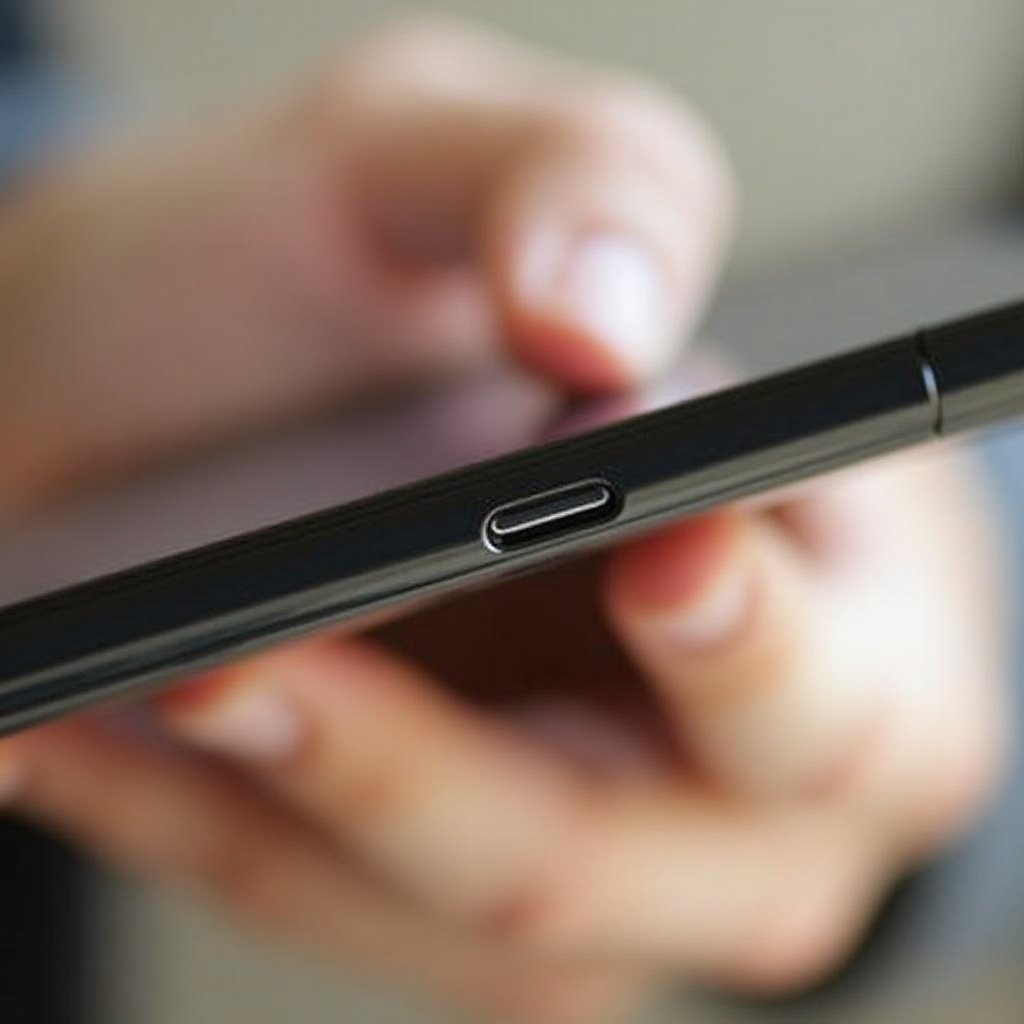
On most Samsung models, the power button is on the right side of the device. However, newer models sometimes integrate this with the Bixby button, which might require a short learning curve.
Step-by-Step Guide to Using the Hardware Buttons
- Locate the power button.
- Press and hold the button until the power menu appears.
- Select ‘Power Off’ on the screen.
- Confirm by tapping ‘Power Off’ again.
Mastering these steps allows for quick turn-off, essential for troubleshooting or conserving battery.
Method 2: Turning Off Through the Quick Settings Menu
When you prefer not to use physical buttons, the Quick Settings menu provides an alternative solution for powering off your device.
Accessing the Quick Settings Menu
Unlock your phone and swipe down from the top to reveal the notification bar, then swipe down again to display the full Quick Settings panel.
Navigating to the Power Off Option
Find the ‘Power’ icon within Quick Settings and tap it to access the power menu. Select ‘Power Off’ and confirm. This approach is beneficial for those avoiding button wear or dealing with unresponsive buttons.
Method 3: Using Bixby for Voice-Controlled Shutdown
Bixby offers a modern, hands-free method to turn off your phone. Ideal for those who value voice command technology.
Setting Up Bixby for Voice Commands
Ensure Bixby is activated by pressing its button and following setup instructions. Familiarize yourself with basic commands during this process.
Turning Off Your Phone Using Bixby
Say, ‘Hi Bixby, turn off my phone.’ Bixby will ask for confirmation, after which it will shut down your device. This method highlights the convenience and capabilities of virtual assistants.

Troubleshooting Power Off Issues
Occasionally, you might encounter challenges when turning off your phone. Being prepared with troubleshooting strategies can help you navigate these issues efficiently.
What to Do If Your Phone is Unresponsive
If your phone doesn’t respond, perform a soft reset by holding the power and volume down buttons together for about ten seconds until it restarts.
Advanced Troubleshooting Tips
For persistent issues, consider a factory reset, but ensure all data is backed up first. If problems continue, contact Samsung support for professional guidance. Addressing these issues promptly can maintain device performance and reliability.
Tips for Maintaining Device Health and Longevity
Regular maintenance and care can significantly extend your phone’s lifespan.
The Importance of Regular Shutdowns
Turning off your phone periodically helps clear temporary files and improve device performance while boosting battery life.
General Maintenance Tips
Keep your phone’s software updated, use protective covers, and clean your device regularly to enhance durability and functionality.
Applying these simple practices can ensure your Samsung Galaxy lasts for years, providing optimal performance and reliability.
Conclusion
Whether you’re using the hardware buttons, Quick Settings, or Bixby, mastering these methods will enhance your experience with your Samsung Galaxy phone. These approaches ensure you’re always equipped to handle your device efficiently, thereby maximizing its lifespan and performance.
Frequently Asked Questions
How do I turn off my Samsung Galaxy phone if the screen is frozen?
Try performing a soft reset by holding down the power and volume down buttons for about ten seconds. This should reboot the phone without data loss.
Can I schedule my phone to turn off automatically?
Samsung Galaxy phones don’t natively support auto power-offs, but you can download third-party apps from the Google Play Store for this functionality.
What should I do if my phone doesn’t turn back on after shutting down?
Check if the battery is charged. If not, charge it and try turning it on again. If it still doesn’t work, perform a soft reset or contact Samsung support for further assistance.