

Introduction
Discovering the perfect mouse for your Microsoft Surface can transform how you interact with your device. The sleek design and versatility of Surface devices cater to a wide range of users, from creatives to business professionals. Having the right mouse is not just about convenience; it is an essential part of maximizing your productivity and comfort. Let’s explore what makes a great mouse for your Surface and how to make the best choice.
Understanding Your Surface Needs
Microsoft’s Surface lineup includes devices like the Surface Pro, Surface Laptop, and Surface Go, each tailored to different types of users. If your daily activities involve detailed graphic work, the precision of your mouse becomes crucial. Users engaged in routine tasks might focus more on comfort and ease of use. Understanding your specific needs based on your use case helps in selecting a mouse that complements and enhances your Surface experience.
Key Features to Look for in a Mouse
Choosing the right features in a mouse is key to ensuring it complements your Surface device:
1. Sensitivity and DPI Settings: Look for a mouse with adjustable DPI. This feature lets you change the cursor sensitivity, which is useful for design work or precise tasks.
2. Connectivity Options: Decide between a Bluetooth or a USB-connected mouse. Bluetooth mice provide portability and reduce cable clutter.
3. Ergonomic Design and Comfort: Invest in an ergonomic mouse that fits well in your hand to avoid strain over long periods. Comfort should be prioritized to enhance productivity.
Top 3 Mice for Microsoft Surface in 2024
Choosing from the plethora of available options can be daunting. Here, we highlight the best mice for different needs:
– Best Wireless Mouse Options: The Logitech MX Master 3S combines ergonomic design with superior functionality. Its multiple programmable buttons help streamline workflow, making it ideal for extensive use.
– Best Wired Mouse Options: For those who prefer wired connections, the Razer DeathAdder V2 offers precise control and a comfortable grip, perfect for both gaming and professional settings.
– Budget-Friendly Picks: The Microsoft Bluetooth Mouse is an economical choice without sacrificing quality. It is lightweight and seamlessly pairs with Surface devices, suitable for students or anyone on the go.

How to Optimize Mouse Settings for Your Surface
To fully leverage your mouse, customizing its settings can lead to enhanced productivity:
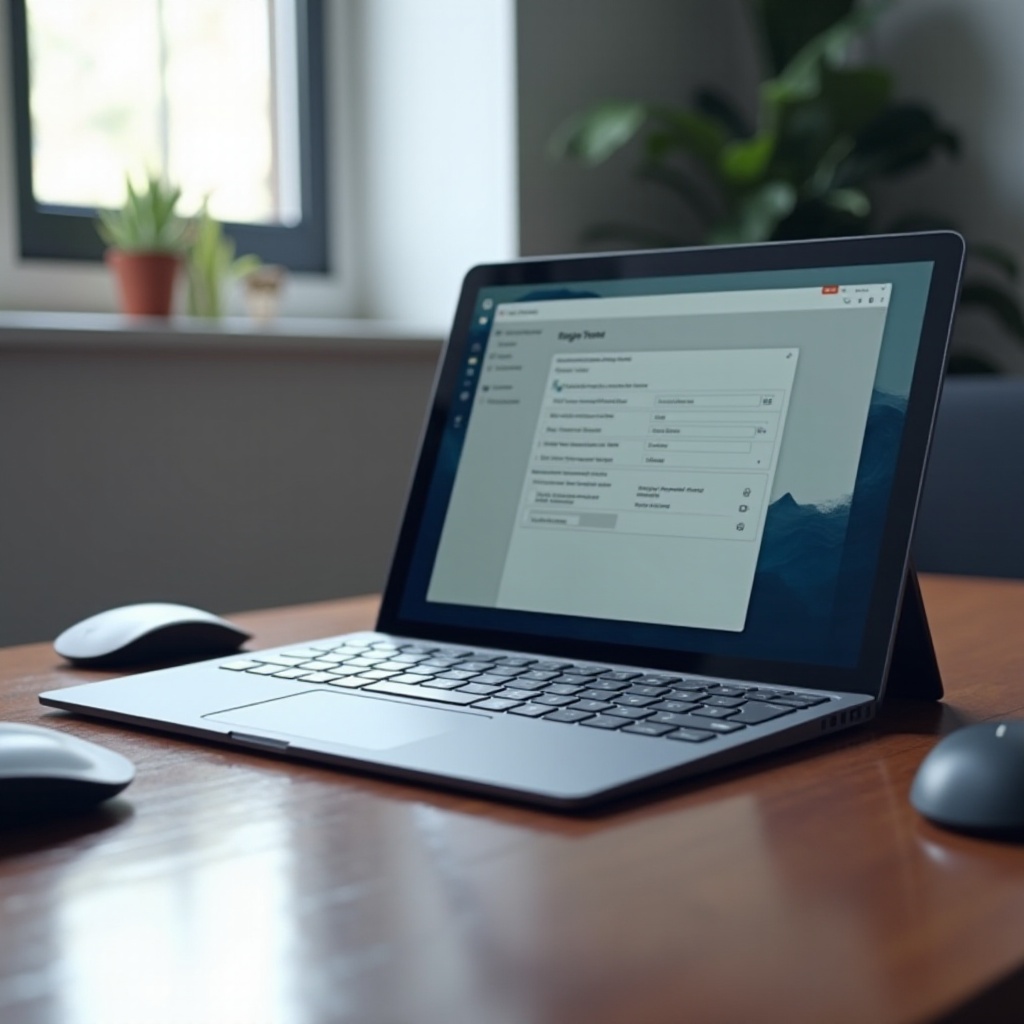
1. Customizing Button Functions: Many mice allow button customization via drivers or software, enabling users to assign functions like copy, paste, or open frequently used applications.
2. Adjusting Sensitivity and Speed: Tweak the DPI and pointer speed to suit your personal preferences or the task at hand, ensuring precise control during use.
Enhancing Productivity with Your Surface and Mouse
Efficiency is not just about the mouse itself but also about how you utilize your setup:
– Tips for Ergonomic Use: Ensure your workspace promotes a good posture. Your arm should rest comfortably to prevent discomfort.
– Recommended Accessories: Consider using a high-quality mouse pad or wrist rest. These accessories can make longer sessions more comfortable and decrease the risk of repetitive strain injuries.
Conclusion
Choosing a suitable mouse for your Microsoft Surface can significantly enhance your user experience. By aligning your choice with your device’s requirements and optimizing your setup for ergonomics, you ensure comfort and productivity. As you navigate through options, consider revisiting your needs periodically, adjusting choices to stay aligned with any changes in usage patterns.
Frequently Asked Questions
What is the best wireless mouse for Surface in 2024?
The Logitech MX Master 3S is highly recommended for its ergonomic design and customizable features, making it the best wireless option for Surface users.
Can I use any Bluetooth mouse with my Microsoft Surface?
Yes, most Bluetooth mice are compatible with Microsoft Surface devices, as long as they support the Bluetooth version that your Surface device uses.
How do I customize mouse settings on a Surface device?
You can customize mouse settings through the Windows Settings app. Go to ‘Devices’, then ‘Mouse’, and adjust settings like pointer speed or configure additional buttons through dedicated mouse software if available.